Troubleshooting
Quick fixes for common issues.
🔊
Only getting "You" as output?
This usually means your Mac is using the wrong microphone input.
- 1. Open System Settings → Sound → Input
- 2. Make sure the correct microphone is selected
- 3. If your MacBook lid is closed, you need an external microphone — the built-in mic is disabled when the lid is shut
⌨️
Hotkey not working?
The global hotkey requires Accessibility permission to work. The fastest fix is a clean reset:
-
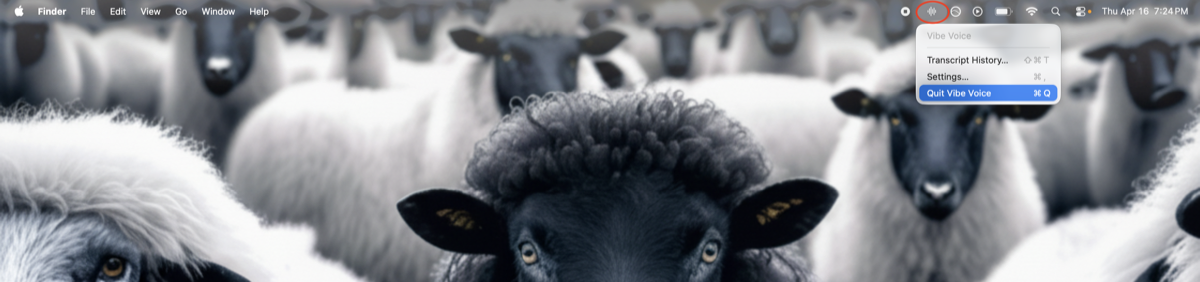
1. Quit Vibe Voice first — click the menu bar icon → Quit Vibe Voice. Permissions won't update while it's running.
-
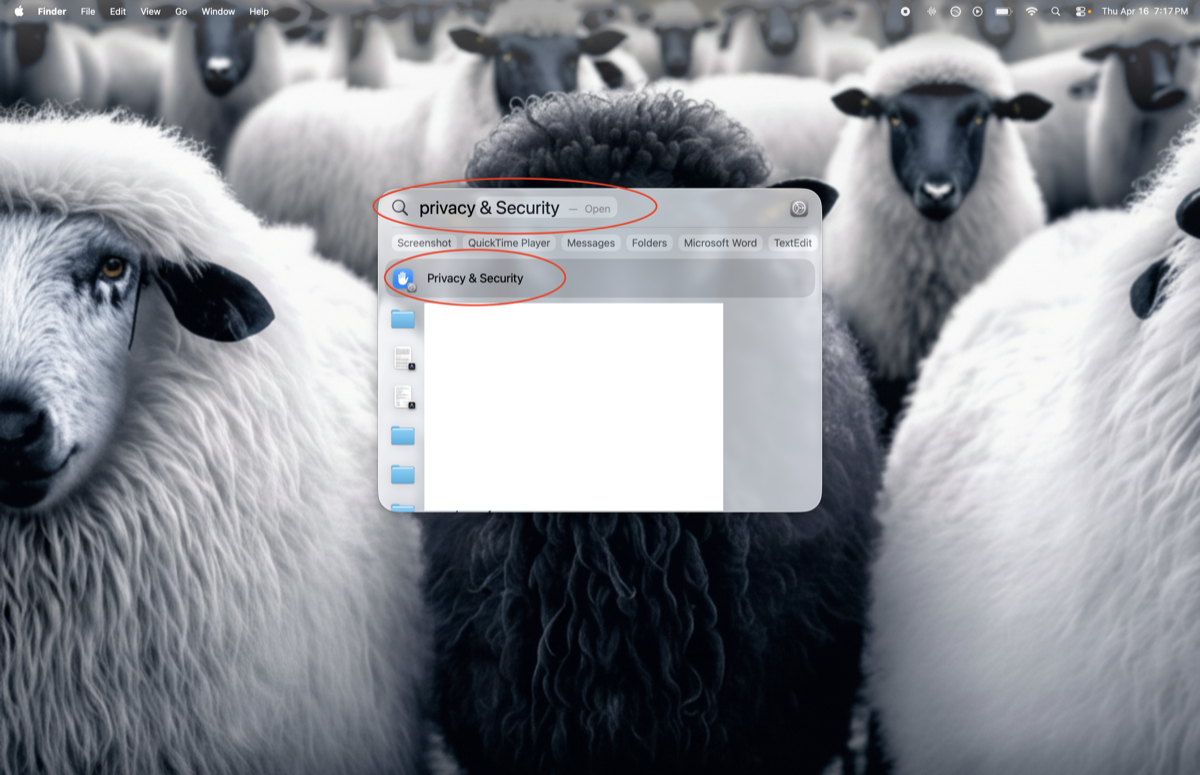
2. Open System Settings (fastest: ⌘ Space, type "privacy", hit Enter)
-
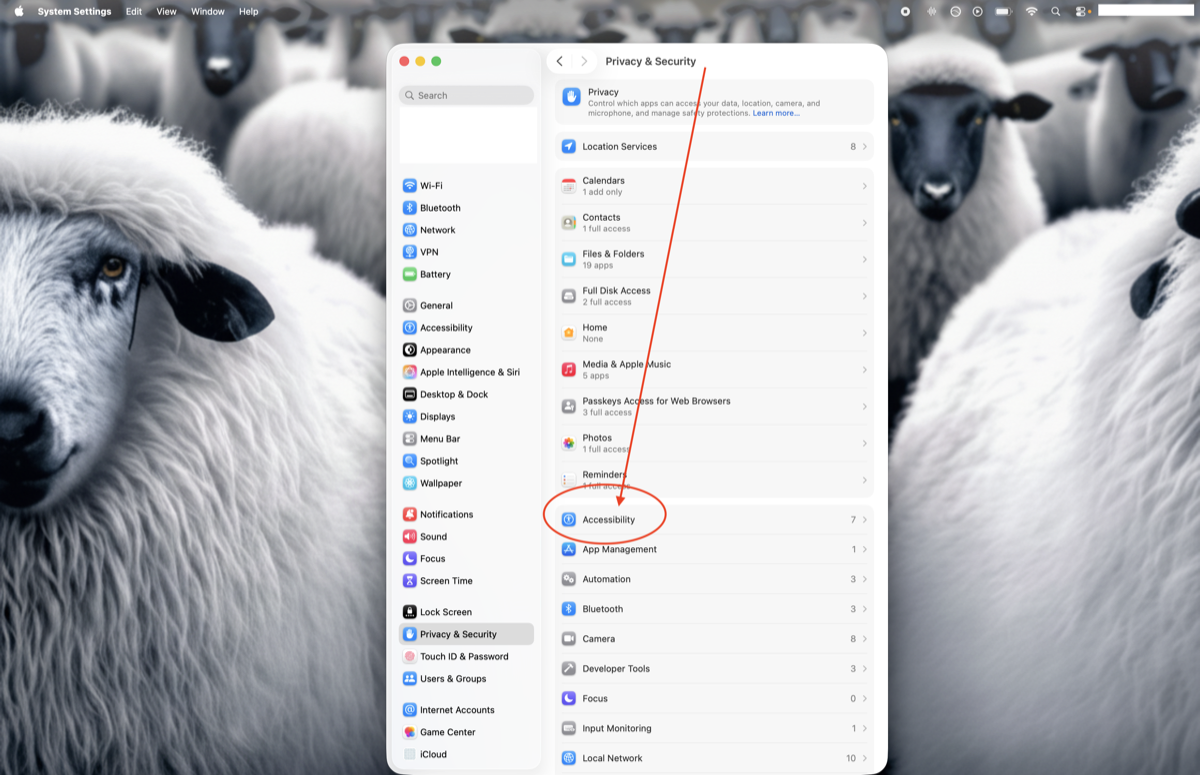
3. Go to Privacy & Security → Accessibility
-
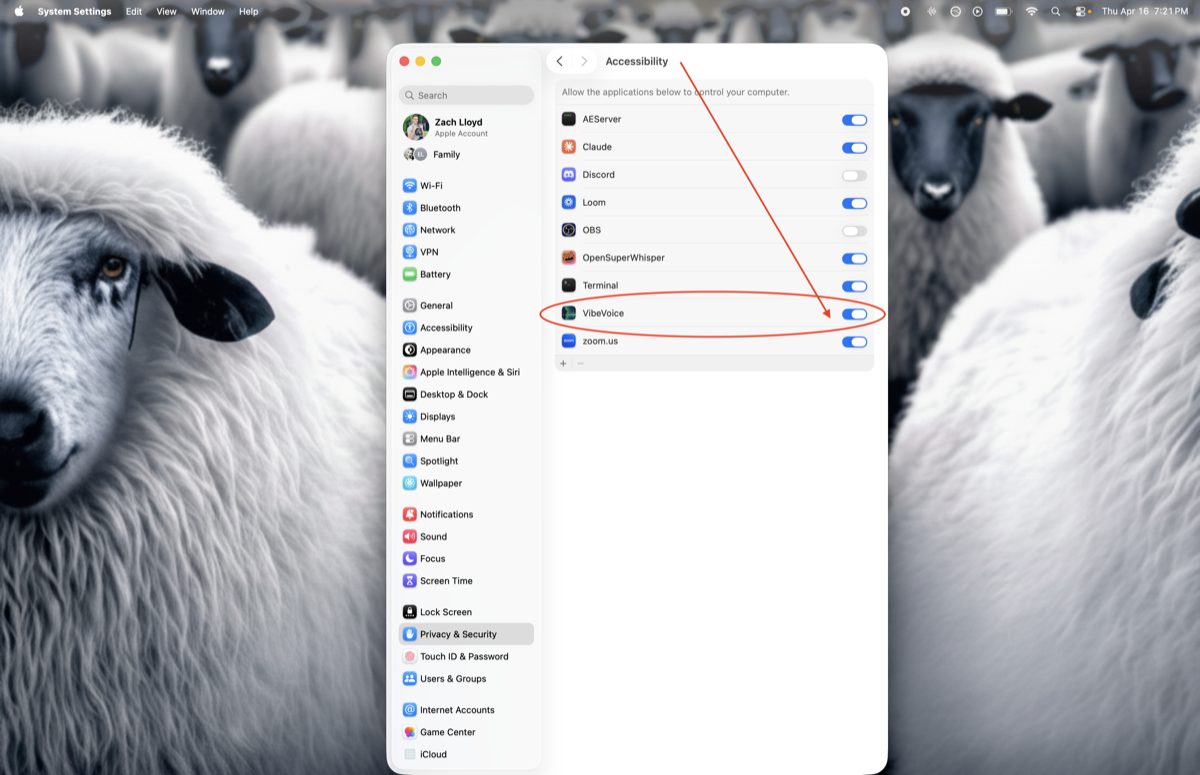
4. Find Vibe Voice in the list, click it so it's highlighted, then click the [ — ] minus button at the bottom to remove it.
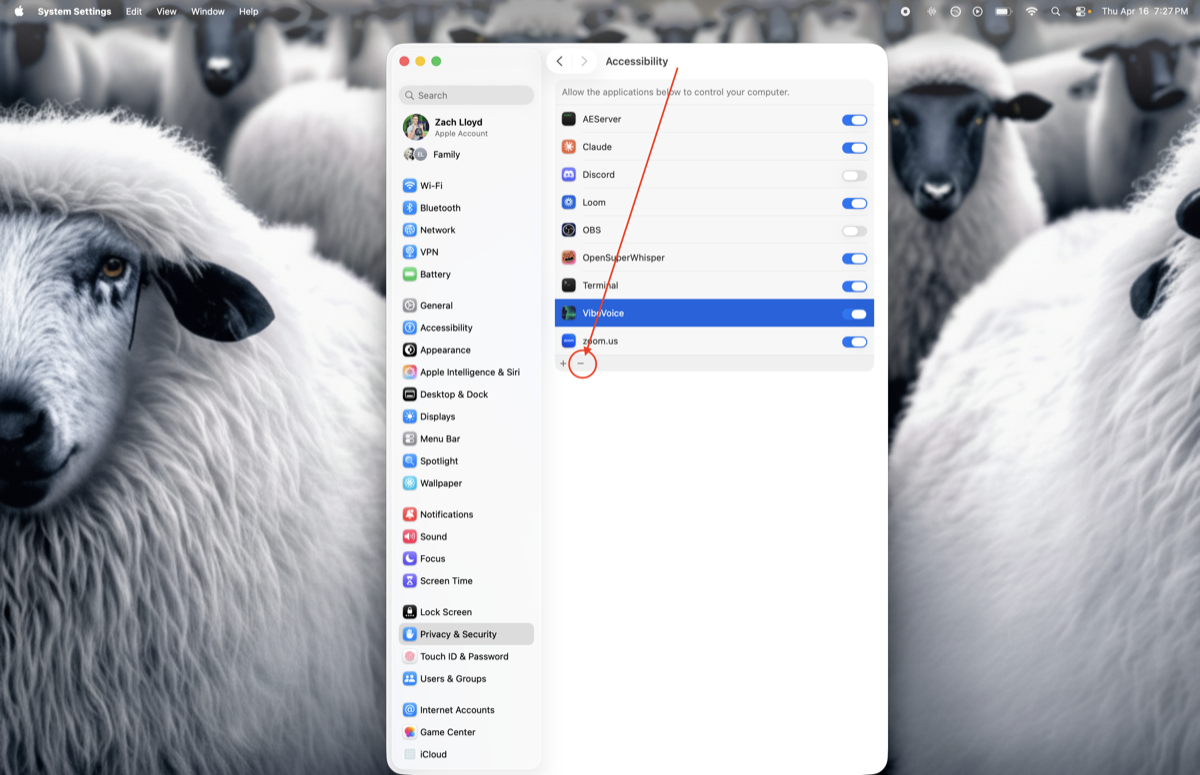
-
5. Go back, then open Microphone and do the same thing (toggle off, or hit the minus button to remove Vibe Voice).
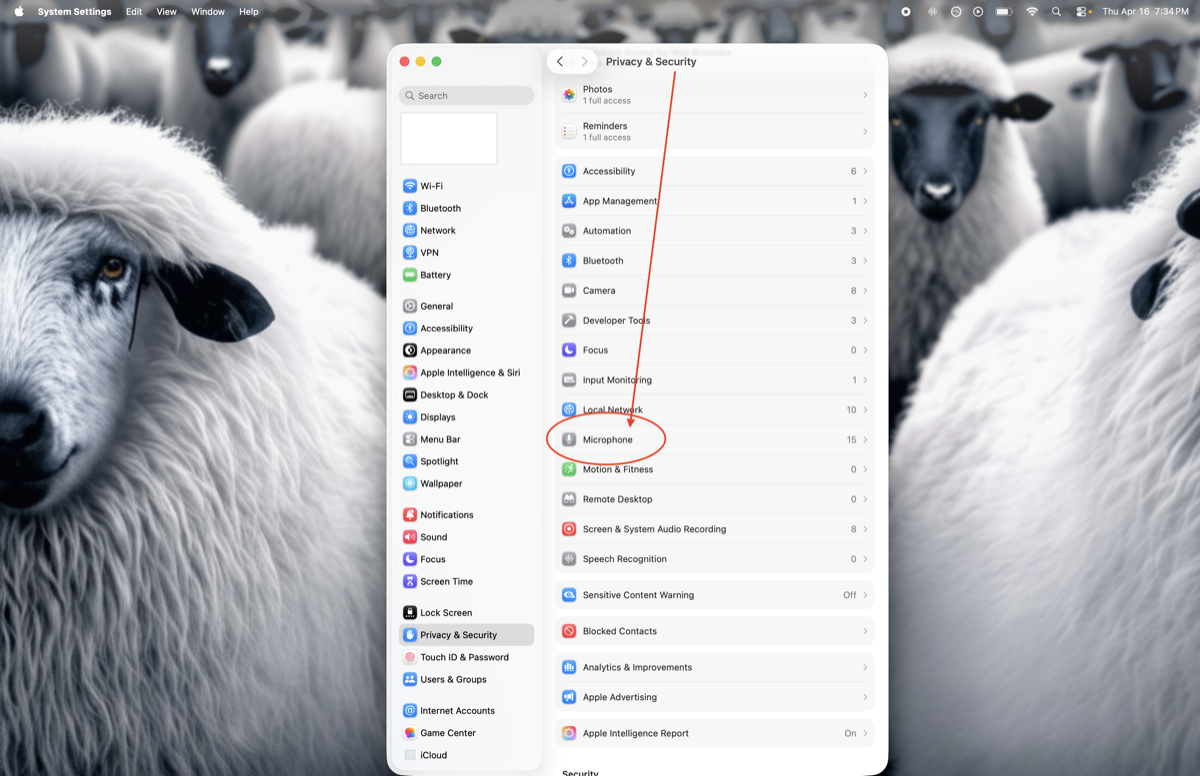
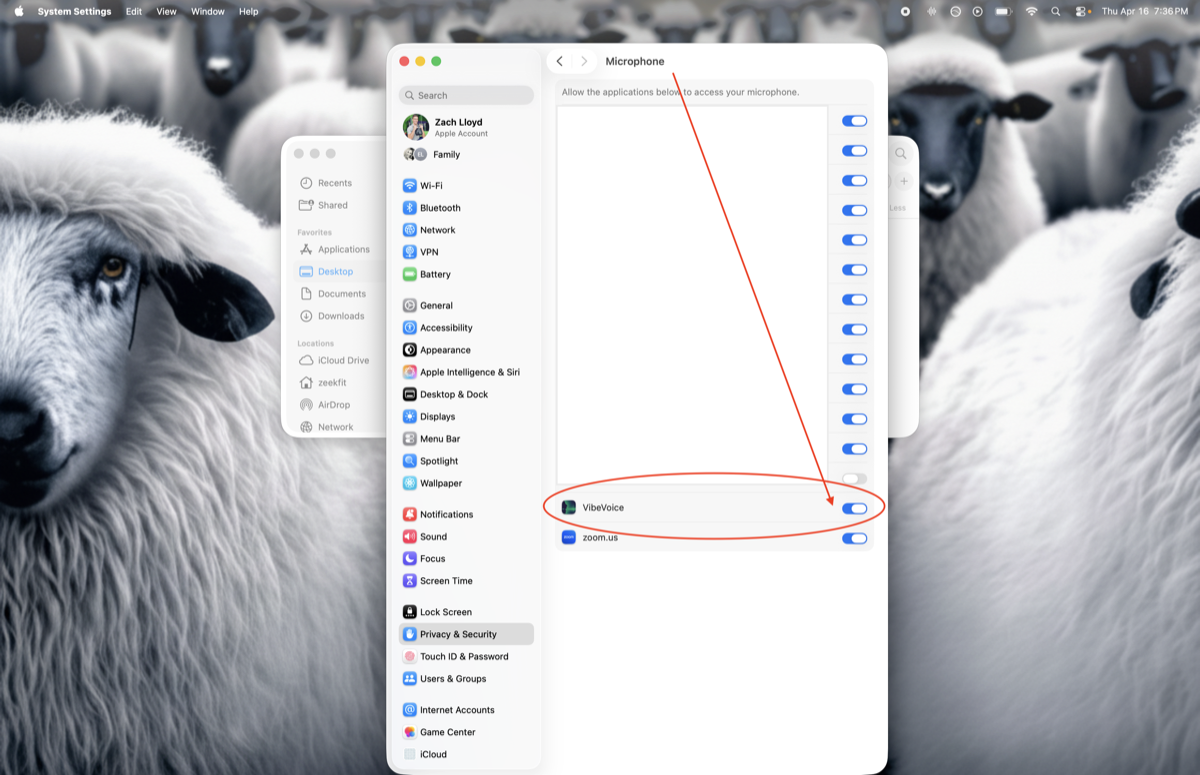
-
6. Re-launch Vibe Voice. macOS will prompt fresh for both permissions — click Allow / Open System Settings when asked.
Vibe Voice must live in /Applications
If the app is in Downloads or Desktop, macOS permissions get unreliable. Drag Vibe Voice into your Applications folder, then run the reset above.
Still nothing? Restart your Mac — macOS keeps a permissions database that occasionally gets stuck, and a reboot clears it. Also check that no other app (Raycast, Alfred, clipboard managers) has hijacked ⌘ /.
🛟
Need more help?
Email zach@zach-lloyd.com with your debug info and I'll get back to you quickly.
How to get your debug info:
Click Vibe Voice menu bar icon → Settings → About → Copy Debug Info